Operating Studio OS
The platform is designed around short review loops, not constant supervision. Your most useful surfaces are the Dashboard, Drafts, Approvals, the domain records, and each agent's own overview.
Start on the Dashboard
The Dashboard combines current company signals:
- live client, pipeline, project, and revenue indicators;
- briefings from enabled agents;
- pending approvals;
- message drafts waiting for review;
- recent decisions; and
- an activity stream for what has changed.
It is an operational summary, while Sven's Board tab is the deeper company-state report with health, positives, concerns, and recommended actions.
Work the two review queues
Drafts
Kairi, Madis, and other communication agents prepare outbound messages. The Dashboard links to the
relevant agent's Drafts workspace, where the actual recipient, subject, body, attachments, and
status live. Edit, reject, approve, and send there. Approval and sending may be one or two steps,
depending on the agent's auto-send approved drafts setting.
Approvals
The Approvals page covers proposed business actions. It defaults to decisions assigned to the signed-in person; administrators can also inspect the company-wide queue. Every card shows the agent, action, rationale, risk, reviewer, and decision history. Rejection can include feedback.
These are intentionally different records: a message draft has an editing and delivery lifecycle; an approval represents permission for a defined action.
Use the domain pages as the source of truth
- Sales contains the open deal board plus the permanent client directory.
- A client page contains people, state, deals, projects, email, documents, notes, and activity.
- Projects offers timeline, board, and list views; each project contains its brief, phases, tasks, files, email, notes, status, and audit.
- Knowledge, Calendar, Analytics, and Conversations provide their specialised views.
- Agents shows each enabled agent's live overview, chat, drafts or other work tabs, skills, and configuration.
Control automation deliberately
Administrators can pause autonomous loops for the whole company. Manual routes and explicit reviews remain available, which is useful during setup or investigation. Agent settings control such things as work cycles, schedules, model budgets, and whether an approved draft sends automatically.
An enabled switch is not enough on its own: the relevant email, accounting, storage, staffing, or other integration must also be connected. Agent pages and Admin expose the current configuration and connection state.
The agent's Responsibilities tab shows measured standing duties and the situations behind them. Instructions → Workflows holds outcomes, triggers and optional timed steps in the same editor used by Admin. Skills brings together tools, scheduled operations and workflow skills. See Responsibilities, Workflows and Skills for the differences, permissions and the effect of changing a running plan. A supported workflow step can be explicitly pre-approved; check that setting alongside automatic sending.
Working with human teammates today
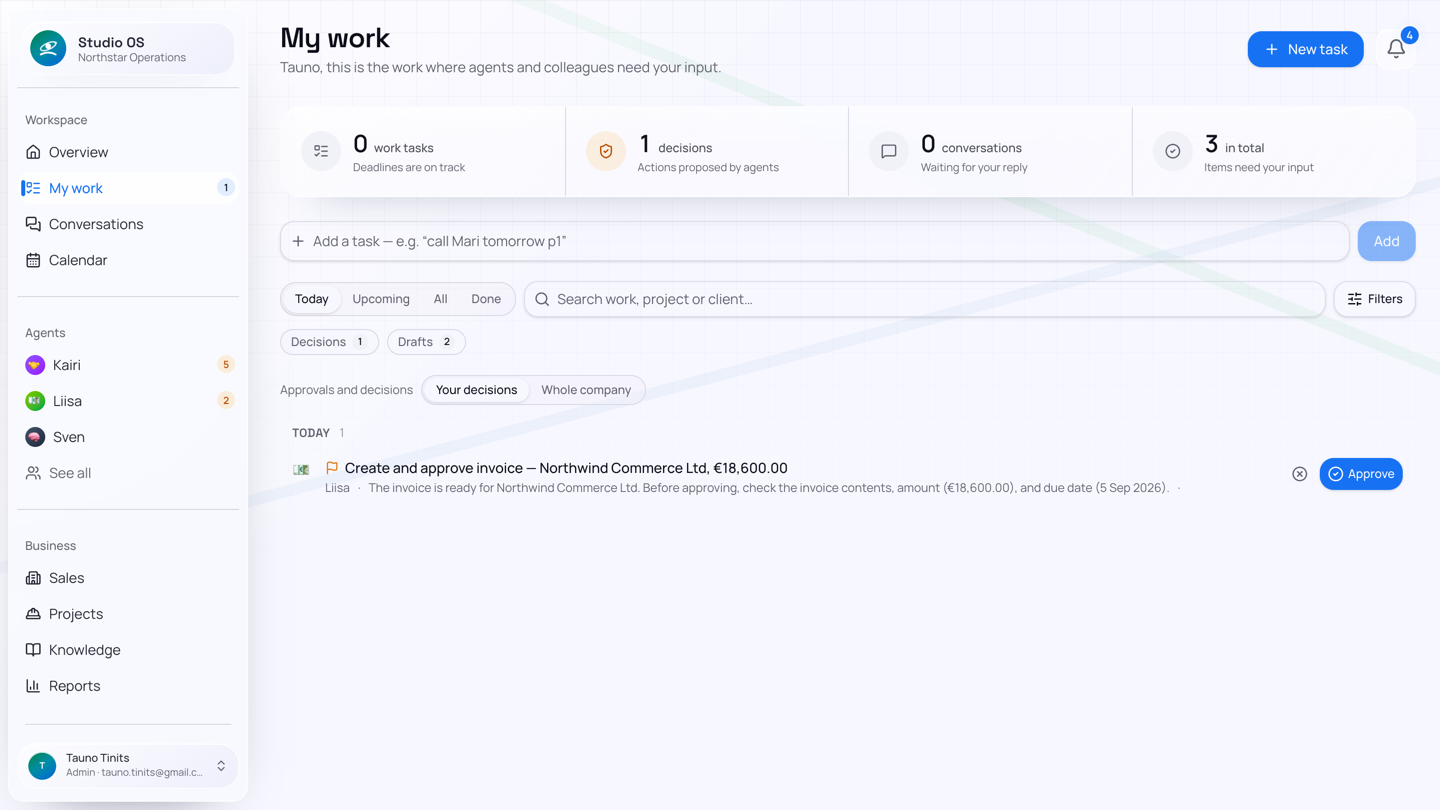
Studio OS supports administrator and regular user accounts, and an approval can target a named user or fall back to a role/company queue. Administrators can see other waiting decisions.
Project tasks assigned to a recognised teammate appear in that person's My work queue. They can report progress, a blocker or completion, while Madis tracks the dependency and follows up. A name or email for someone without a platform account remains a tracked external dependency; it does not create an account or give them access.
A practical daily routine
- Read the Dashboard and Sven Board for changes and risks.
- Review message drafts that need wording or delivery approval.
- Clear your Approvals queue, adding rejection feedback where useful.
- Open Sales or Projects only for the relationship or delivery detail behind a decision.
- Check Admin or the relevant Agent page when expected automation is quiet.
That is the current Studio OS operating loop: agents maintain and prepare the work, records preserve the context, and people make the commitments.